List What The Old Phone Actually Owns
Start with categories, not icons: contacts, calendars, messages, photos, files, passwords, authenticator accounts, health records, voice recordings, downloads, notes, payment wallets, eSIMs, call history, and app-specific databases. Mark whether each item is synchronized to an account, included in a device backup, stored only on the phone, or managed by an organization.
Open the settings of critical apps. Messaging histories, encrypted vaults, authenticators, games, medical apps, and recording tools may require their own transfer or export. A cloud icon does not prove the latest data is present. Check the last successful sync and use a web or second-device view where available.
Record account recovery routes before the move. Confirm the current email, trusted numbers, recovery codes, passkeys, and password manager access. If the old phone is the only second factor for an account, add a supported alternative before changing anything. The security sequence in the account recovery guide is useful when access is already uncertain.
Make A Backup You Can Describe And Verify
Update both devices and the transfer apps while the old phone is stable. Connect power and reliable Wi-Fi, then create the platform-recommended backup. Apple supports Quick Start, iCloud restore, and computer backups; an encrypted computer backup preserves additional protected data such as Health and Activity information. Android vendors provide equivalent account and cable-assisted paths with device-specific limits.
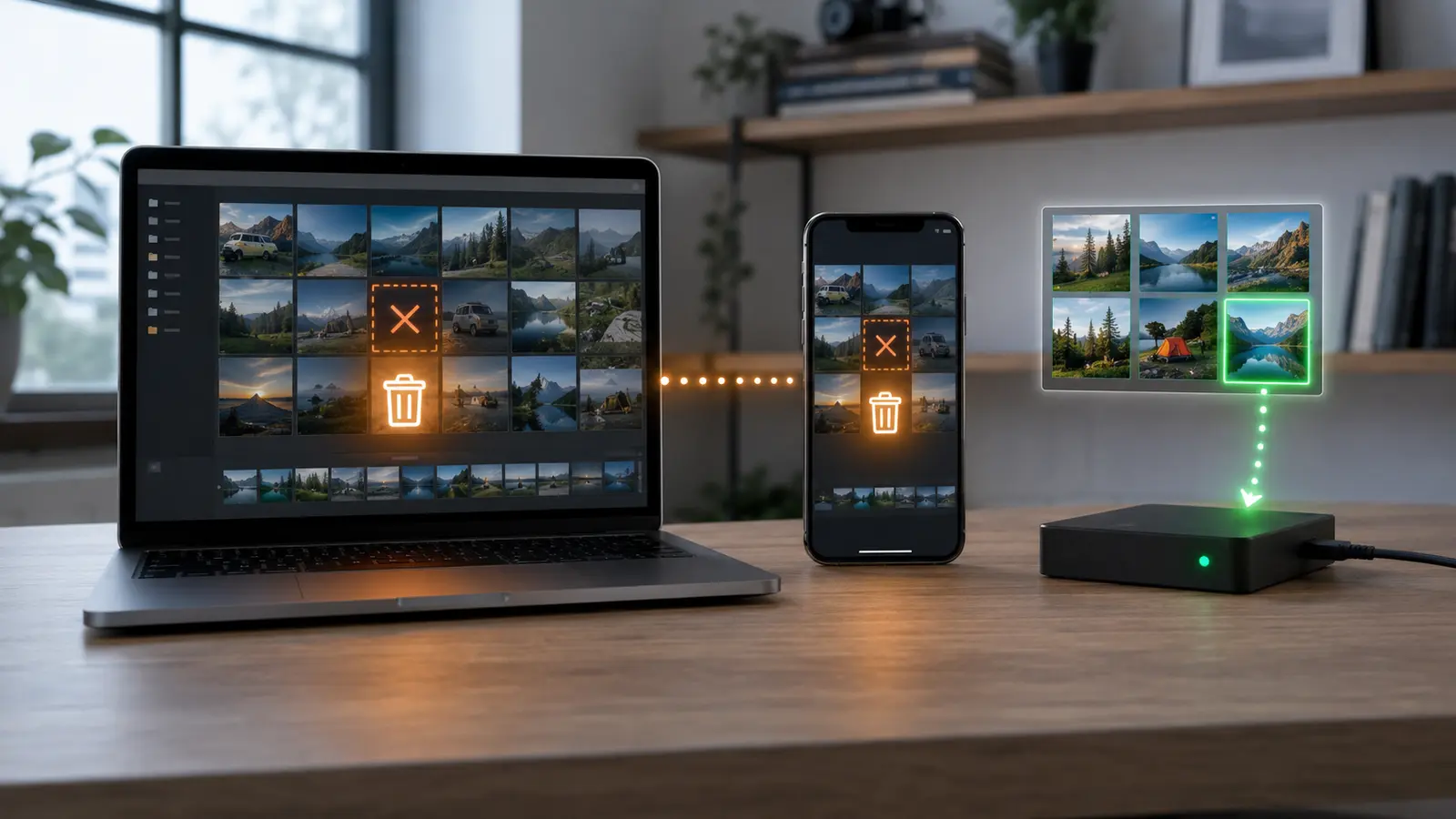
Back up irreplaceable media separately when practical. Export original photos, recordings, and documents to a computer or external drive, then open samples. A synchronized copy may be convenient but still vulnerable to a propagated deletion. Use an independent recovery copy before a destructive reset.
Check available storage on the destination. A transfer can stop or optimize content when the new device is smaller. Decide whether full-resolution media will remain in cloud storage, download locally, or live in the primary photo library. Keep more free space than the estimated transfer requires.
Use The Official Path And Keep The Environment Stable
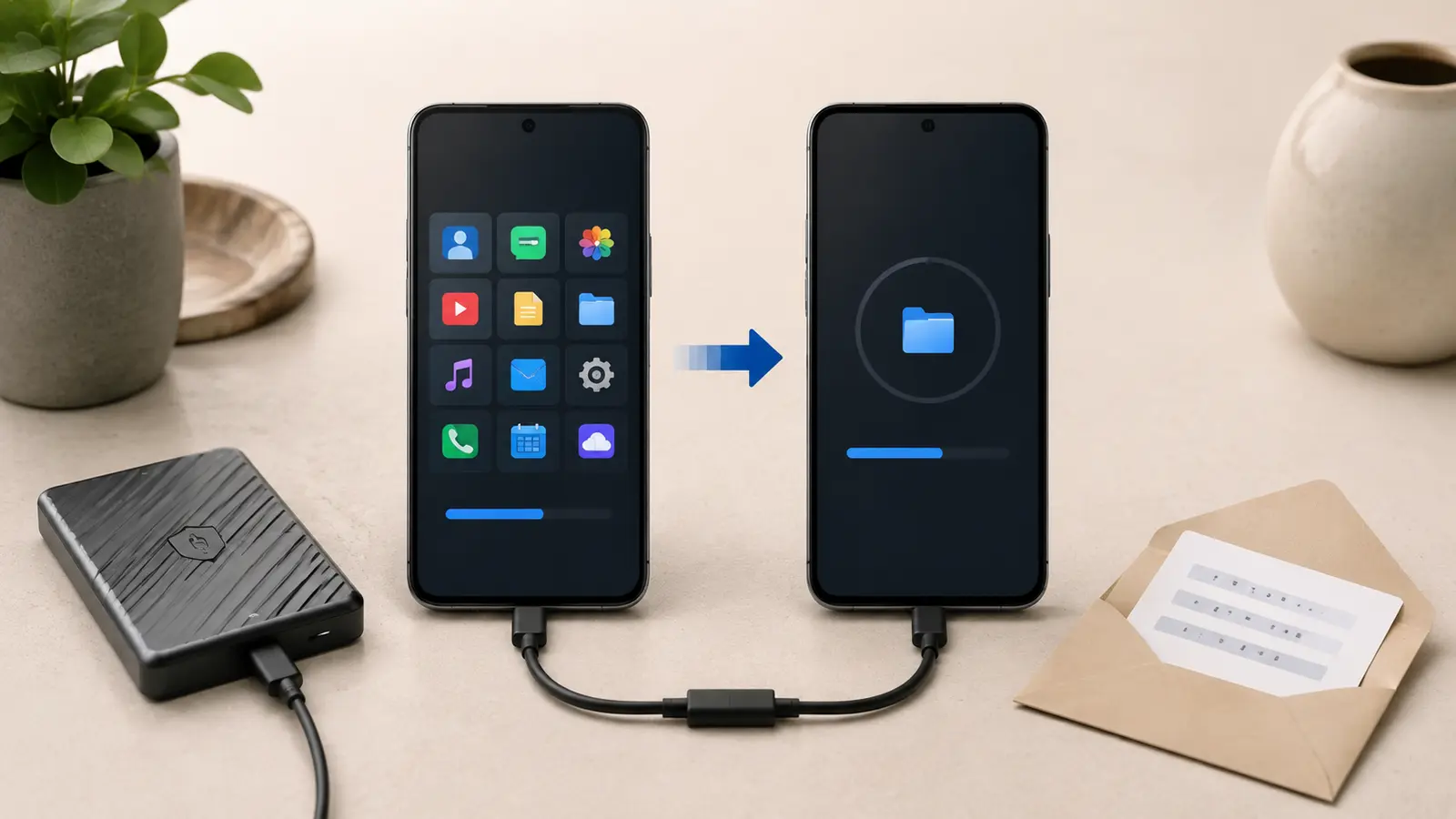
Prefer the platform setup assistant or manufacturer-supported cable path. Apple Quick Start requires the old device nearby and offers wireless transfer; Apple also documents direct wired migration. When moving from Android to iPhone, Move to iOS transfers supported categories during initial setup. Cross-platform moves rarely reproduce every app and setting exactly.
Keep both devices powered, close together, and connected as instructed. Avoid taking calls, changing Wi-Fi, or installing a large operating-system update during the copy. If a cable is used, choose a known data-capable cable rather than one designed only for charging.
Read each permissions screen. Decide whether to move location history, health data, photos, and messages rather than accepting a vague all-data label. Work-managed profiles, parental controls, and banking apps may require fresh enrollment by design.
| Data type | Likely path | Verification |
|---|---|---|
| Contacts and calendars | Account sync | Counts and recent edits |
| Photos and video | Cloud or direct copy | Original resolution and dates |
| Authenticator tokens | App-specific transfer | Test several logins |
| Messages | Platform transfer | Old and recent threads |
| Local files | App export or cable | Open representative files |
Test Functions, Not Just Icons
An installed icon can open to an empty account. Sign in to critical services and test recent content. Send and receive a call, SMS, email, and messaging-app note. Verify contacts, calendars, alarms, browser bookmarks, saved passwords, health records, voice memos, and offline files. Confirm timestamps and attachments, not only item counts.
Test two-factor authentication before signing out of the old phone. Confirm banking and payment apps carefully; never share codes during migration. Re-enroll biometrics and review app permissions, notification access, accessibility services, VPNs, device management, and emergency information.
For notes, verify attachments and internal links using a sample retrieval test. For paid apps, check whether the subscription, license, and project files followed the account or remained on the old device. The subscription audit helps identify applications that need export before cancellation.
Wait Before Resetting The Old Device
Use the new phone for several normal days while the old one remains charged and offline or securely stored. Check uncommon but important workflows: travel tickets, scanning, hotspot, car pairing, smart-home control, accessibility shortcuts, work VPN, and emergency contacts. Some missing data becomes visible only when a recurring event arrives.
After verification, sign out or remove the device from accounts according to platform guidance, unpair wearables, transfer or remove the eSIM, and disable activation locks where required. Then use the operating system’s secure erase or factory-reset process. Removing files manually is not the same as resetting encrypted storage.
Keep the backup until it has survived another routine backup cycle and you are confident the new phone is complete. Document any app-specific recovery steps for the next migration. A good process becomes shorter each time because the inventory is already known.
Common Phone-Migration Questions
Can I Reset The Old Phone As Soon As Setup Finishes?
No. Wait until critical data and services have been tested in real use and an independent backup remains available.
Will Every App Transfer Between Android And iPhone?
No. Supported data categories move, but purchases, local databases, settings, and some message histories may require separate steps.
Do I Need A Cable?
Not always, but a supported wired transfer can be faster and more stable for large libraries. Use the method documented for both devices.