
Give Synchronization And Backup Different Jobs
Synchronization keeps selected data consistent across locations. Add a note on a phone and it appears on a laptop; edit a document and collaborators see the change. That live consistency is productive. It also means an accidental deletion, unwanted overwrite, or damaged record may travel quickly.
A backup is a separate recoverable copy from an earlier point in time. It should let you answer three questions: what versions exist, how long they remain, and how to restore them without damaging the live data. A recycle bin or version history inside a sync service can help, but retention, account access, and service-wide failures still matter.
Archive is a third job. It preserves information for long-term reference, compliance, or historical value, often with deliberate organization and integrity checks. One product may offer sync, backup, and archive features, but the labels do not guarantee that all three needs are met.
Map The Changes That Could Spread
List the important applications and identify their storage model. Does the app keep a local database, individual files in a synchronized folder, or data only on the vendor’s servers? Can it export? Does deletion enter a recoverable bin? Does it preserve versions? Can another account administrator remove access?
Consider accidental deletion, bulk rename, sync conflict, ransomware, account lockout, subscription lapse, device theft, app defect, and vendor shutdown. A password problem calls for the system in Passwords Are a System; ransomware needs a copy the compromised device cannot rewrite, as explained in the ransomware recovery guide.
Cloud availability is not data ownership. If the only route to a file is one account and one application, recovery depends on both. Export high-value data in a documented format and store it under separate credentials or offline protection.
Build More Than One Recovery Boundary
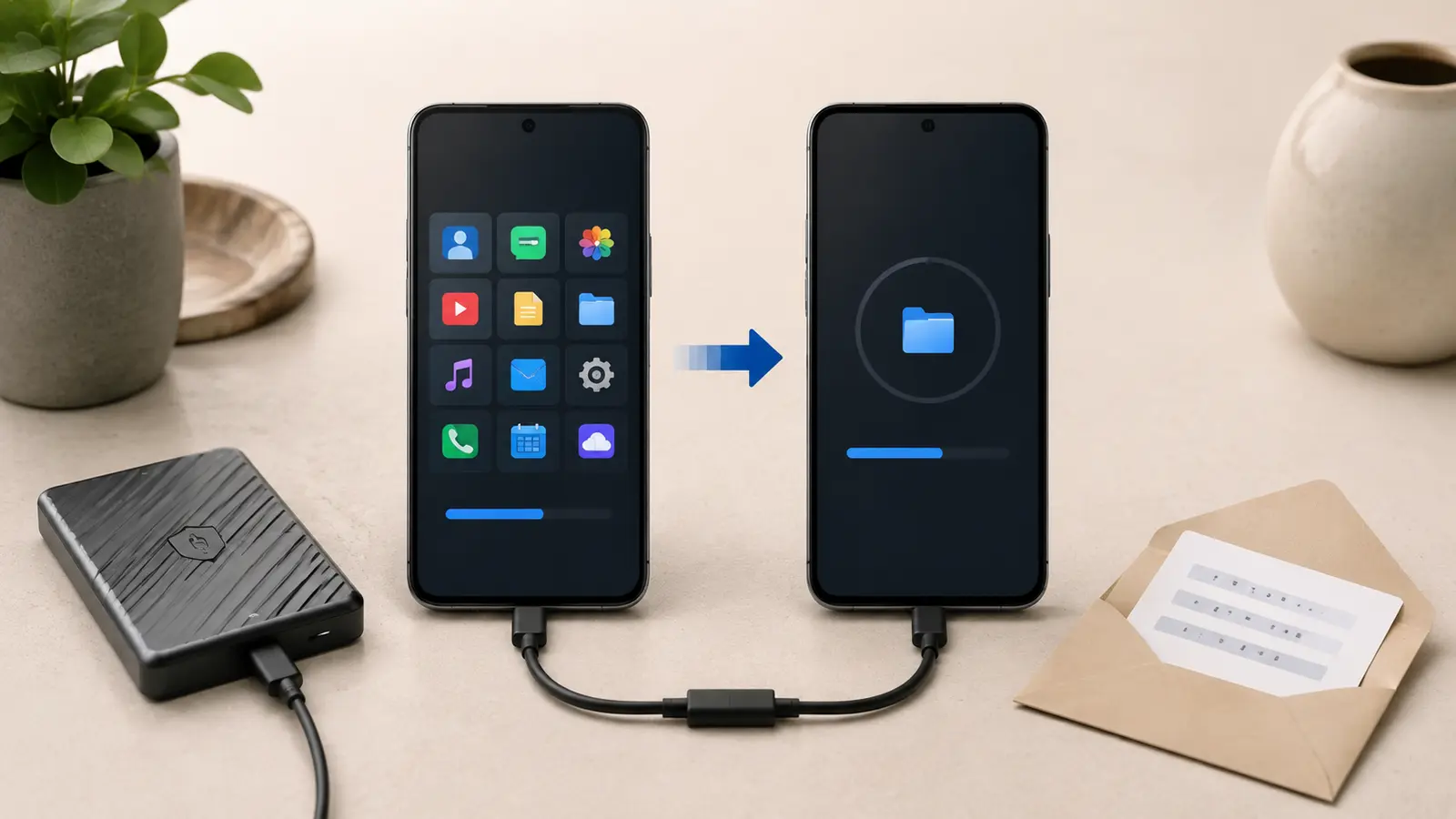
Keep the live synchronized copy for daily use. Add an automated versioned backup to a destination that the app does not treat as another peer. For high-value data, add an offline or immutable copy disconnected from ordinary credentials and deletion. The familiar 3-2-1 idea—three copies, two storage types, one off-site—remains a useful starting point, though threats and recovery objectives should shape the final design.
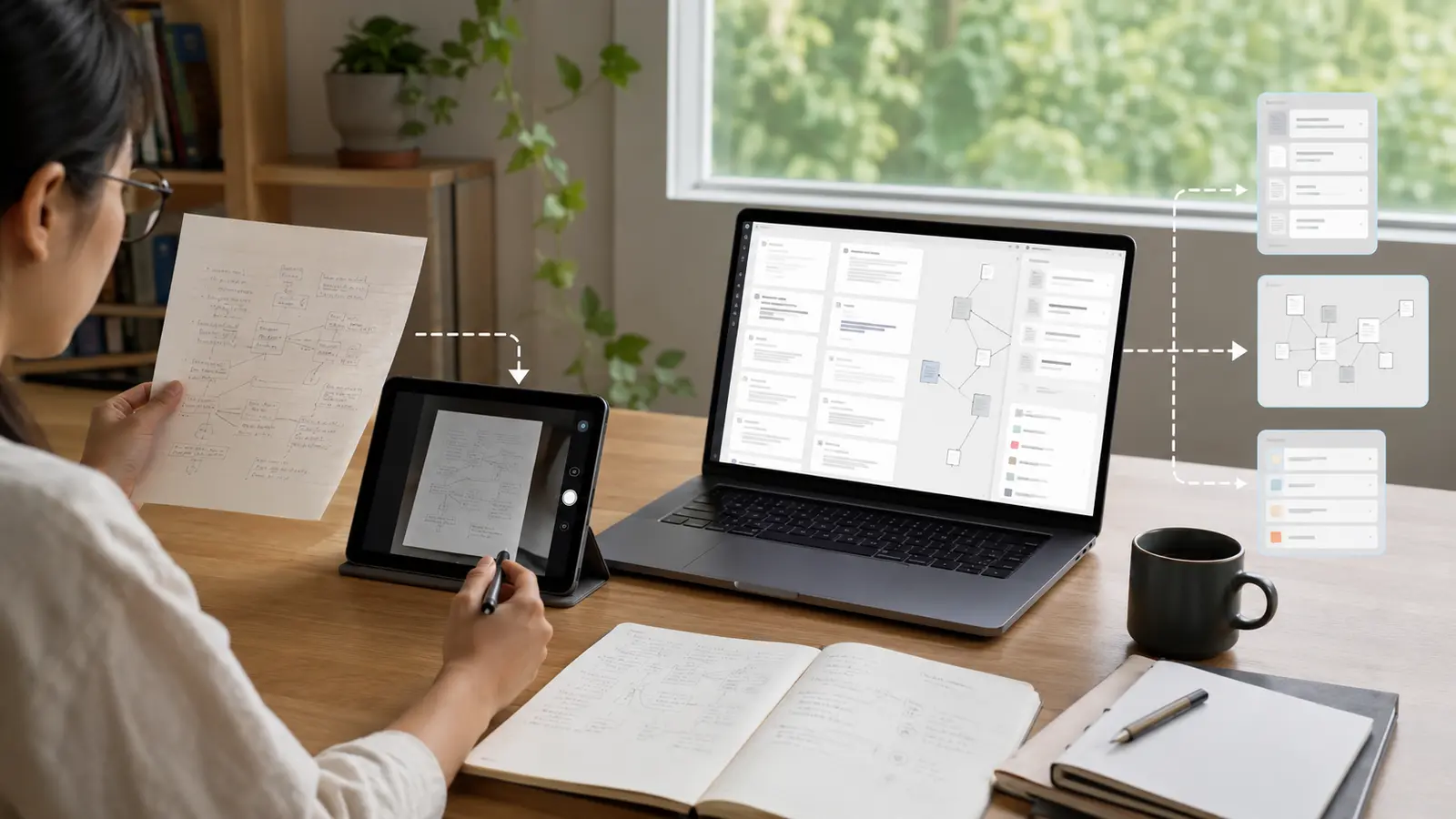
Schedule app-native exports for systems that hide data inside proprietary databases. Google Takeout can create downloadable archives of selected products; use it as an export mechanism and inspect the result rather than assuming one click provides a complete restore. Notes, task history, chats, and photo metadata often need different validation.
| Layer | Protects against | Important property |
|---|---|---|
| Live sync | Device loss and access friction | Current availability |
| Version history | Recent overwrite or deletion | Known retention |
| Independent backup | Service or account failure | Separate control plane |
| Offline or immutable copy | Ransomware and bulk deletion | Cannot be rewritten routinely |
| Exported archive | App lock-in | Usable open formats |
Encrypt sensitive backups and protect recovery keys. Do not make a backup so secret that no authorized person can restore it. Record destinations, schedules, retention, credentials, and owner in a simple recovery note.
Test A Restore Before You Need It
Select a sample containing recent files, older versions, attachments, non-English names, and a large item. Restore it to a temporary location or test account. Verify content, timestamps, metadata, permissions, and relationships. A backup job marked successful may have captured only placeholders or an inaccessible encrypted database.
Measure recovery time and identify prerequisites. Do you need the original app version, a desktop computer, a security key, or enough free storage? During a phone migration, restore tests reveal which app databases were not included in the general device backup.
Repeat after major application, account, or storage changes. Keep at least one restore record with date, scope, result, and unresolved gaps. Recovery confidence comes from evidence, not a green status icon.
Treat Conflicts As Data, Not Clutter
Conflicts happen when devices edit the same item without a common latest state. Do not delete conflict files blindly. Compare timestamps and actual content, merge the needed changes, then preserve a copy until the result is validated. Clock errors and offline devices can make “newest” misleading.
Pause synchronization when a bulk error begins. Disconnect affected devices from the network if necessary, preserve logs and one intact copy, and understand the service’s recovery controls before reconnecting. Repeated retries can overwrite useful evidence.
Photo libraries deserve particular caution because a deletion can remove originals from every connected device. Apply the photo workflow before deduplication. Notes should be tested for attachment and link preservation using the retrieval-system export test. Review retention and cancellation consequences with the subscription audit.
Common Sync And Backup Questions
Is Version History Enough?
It helps with recent mistakes, but may share the same account, retention limits, and service dependency. Important data still deserves an independent copy.
Does RAID Replace Backup?
No. RAID can improve availability after some drive failures, but deletion, corruption, malware, theft, and controller failures can affect the array.
How Often Should I Back Up?
Choose a frequency based on how much work you can afford to lose. Then verify that retention and restore time meet the same objective.