Describe Direction, Magnitude, And Conditions
Test the controller in more than one game and in the platform’s official input or accessories tool. Note which stick, direction, and axis move; whether the motion is constant or intermittent; and whether it changes near center, at the edge, after warming up, or only over wireless. A camera that slowly rotates is different from a stick that cannot reach full range.
Disconnect other controllers, wheels, virtual input tools, and remapping software. Some games switch between devices or combine inputs. Restore the game’s controller settings to a known baseline and compare another profile. If only one title is affected, its dead zone, response curve, aim assist, or configuration is the likely layer.
Update the controller and platform using official software, then restart and retest. Do not install unknown firmware utilities. Steam Input or another translation layer can be useful, but temporarily compare a direct supported path so you know which layer is shaping the signal.
Use Calibration Carefully, Not As A Universal Cure
Calibration maps electrical readings to center and range. It can correct some offsets or replaced parts, but it cannot restore worn resistive material or a damaged spring. Xbox explicitly notes that its recalibration tool does not resolve every stick problem, including drift caused by ordinary wear.
Record the existing behavior before recalibrating. Follow the manufacturer’s tool for the exact controller and finish every step. Then test center, cardinal directions, diagonals, circles, and button clicks. A calibration that improves center but prevents full range is not a successful result.
A dead zone ignores small movement around center. Increase it only enough to suppress minor noise while preserving fine aim. Large dead zones hide symptoms at the cost of response. Pair this with the latency guide when delayed-feeling aim is actually a combination of curve, dead zone, frame time, and display response.
Compare Raw Input Over Wired And Wireless Paths
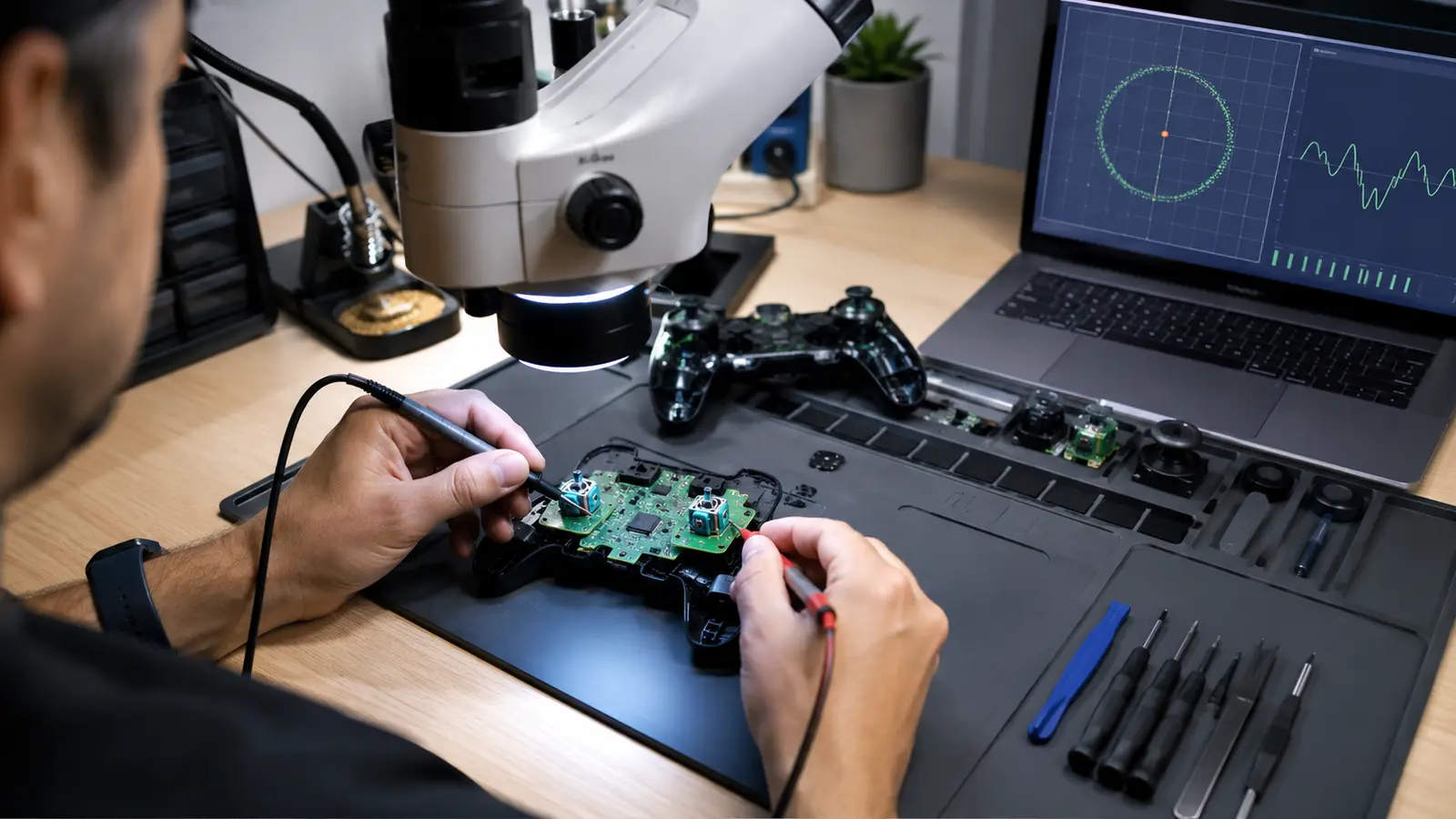
Use a trusted input viewer to watch the center point without touching the stick, then move slowly around the full boundary. Healthy readings need not form a mathematically perfect circle, but they should return consistently near center and reach expected directions without jumps. Save screenshots or values for comparison.
Test with a supported data cable. If the problem exists only wirelessly, inspect battery, receiver position, interference, pairing, and firmware. If raw values remain centered while the game moves, focus on software. If raw values wander on every device and connection, hardware becomes more likely.
Audio connected through the controller can reveal a broader wireless or connector problem. If sound also drops or crackles, use the audio-chain checks and test a direct output before replacing the stick.
| Observation | Likely layer | Next step |
|---|---|---|
| Only one game drifts | Game profile or curve | Reset and compare settings |
| Raw input offset everywhere | Calibration or hardware | Official calibration, then service |
| Only wireless path fails | Radio, power, or receiver | Wired test and interference check |
| Center is noisy but range is complete | Minor wear or contamination | Small dead zone or service |
| Range jumps or cannot reach edge | Module or mechanical damage | Warranty or qualified repair |
Inspect Safely Without Spraying A Mystery Chemical Inside
With power off, check whether the thumb cap rubs the shell, feels loose, sticks mechanically, or fails to spring back. Clean only according to manufacturer guidance. Random lubricants and harsh cleaners can attack plastics, carry debris into sensors, or leave conductive residue.
Traditional stick modules often combine springs and potentiometers. Wear, contamination, bent parts, cracked solder joints, and board damage can produce similar readings. Hall-effect and other contactless sensors remove one wear surface but still depend on mechanics, calibration, electronics, and firmware; they are not immune to every drift symptom.
If the controller was dropped or exposed to liquid, stop using it if the battery, charging, or heat behavior is abnormal. Do not probe a powered lithium battery area. A qualified repair shop can inspect safely.
Choose Warranty, Replacement, Or Component Repair
Use warranty or official service first. Out-of-warranty modular controllers may allow an authorized stick module replacement without board soldering. On soldered modules, replacement requires appropriate tools, temperature control, pad protection, cleaning, and calibration. Removing a multi-pin module by force can destroy the board.
Compare the cost of professional repair with a replacement controller, while considering parts availability and waste. Ask whether the repair includes both mechanical work and final calibration. Test wired and wireless operation, full stick range, buttons, triggers, vibration, charging, and headset audio after service.
In cloud gaming, network delay can make aim feel heavy but cannot create a persistent raw center offset. Use the streaming latency diagnosis to keep those problems separate. If a game itself hitches during camera motion, check the frame-time trace.
A practical diagnosis earns the repair: reproduce, isolate software, compare connections, measure raw input, then choose the lowest-risk remedy that addresses the actual layer.
Common Controller Questions
Can A Dead Zone Fix Stick Drift?
It can mask a small center offset, but reduces fine control and does not repair progressive wear or range errors.
Does Recalibration Repair Worn Sensors?
No. It changes mapping. Manufacturer tools explicitly warn that normal-wear drift may remain.
Are Hall-Effect Sticks Drift-Proof?
No. They avoid contact wear in the sensing element, but mechanics, calibration, electronics, and contamination can still cause problems.