Classify When The Hitch Appears
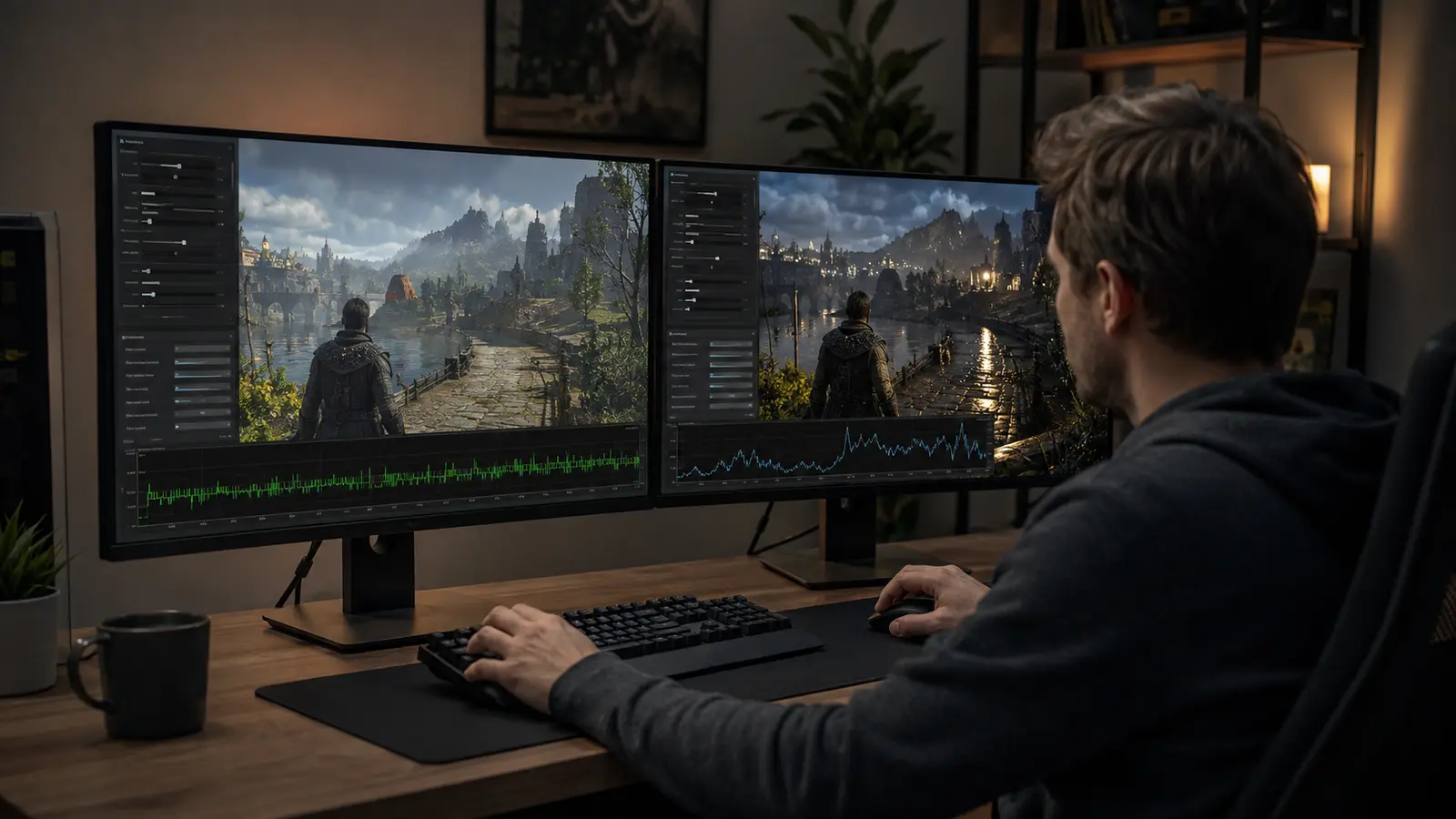
Start with a repeatable route and a frame-time graph. Does the hitch happen the first time an effect appears, every time a door opens, at a regular interval, after a long session, or only during online play? Does a second pass through the same area become smooth? Repeatability distinguishes one-time compilation and cache warming from persistent simulation, storage, memory, or network problems.
Note whether audio breaks, input freezes, or only camera motion jumps. Record the game version, driver, graphics API, settings, resolution, storage location, background applications, and whether the issue began after an update. A report with a timestamp and route is far more useful than “low fps.”
First establish that sustained performance is healthy using the graphics frame-time guide. If every frame is slow, tune the budget. If rare frames are late, chase the hitch.
Correlate The Slow Frame With CPU, GPU, Storage, And Memory
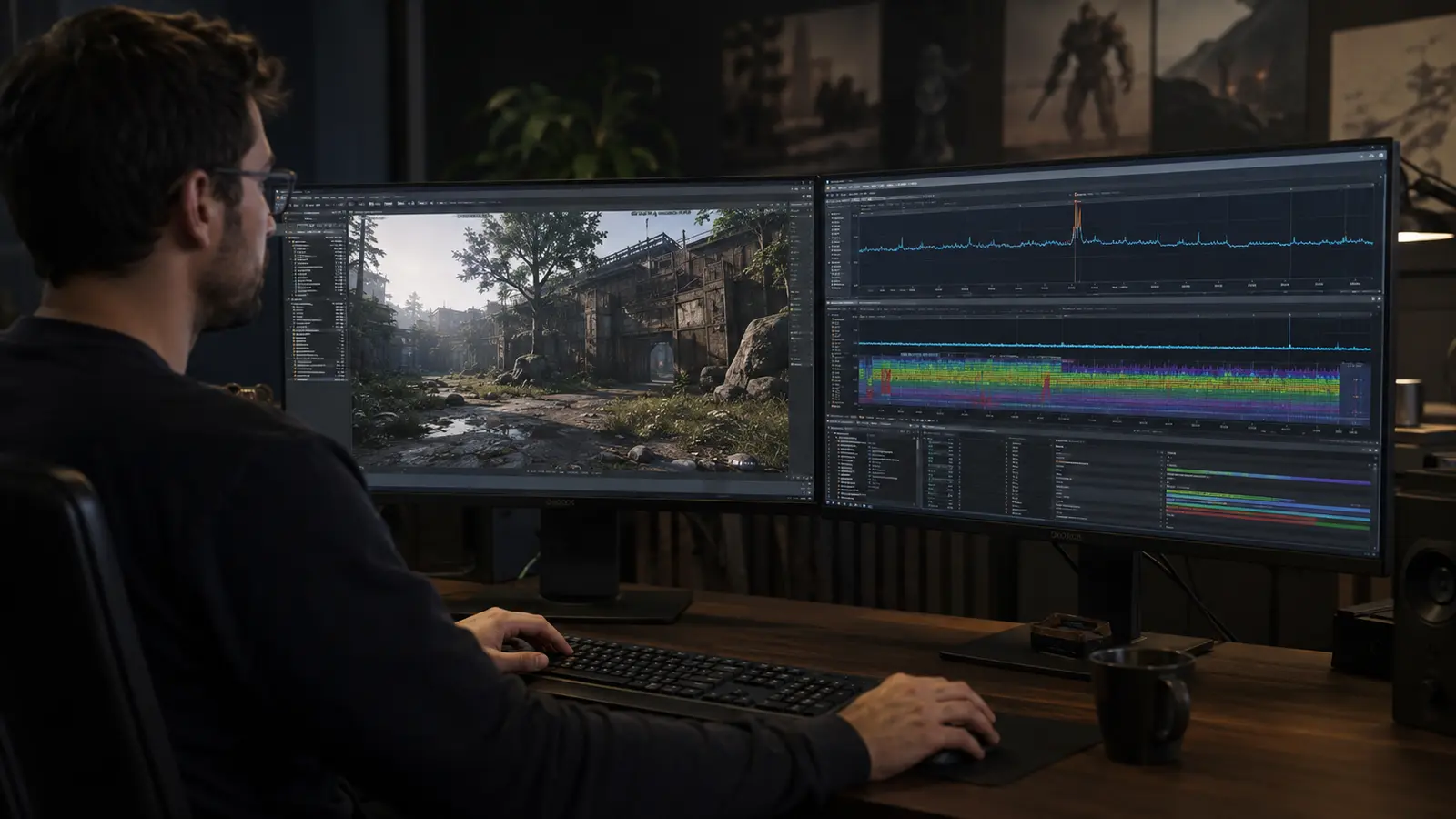
Capture frame times plus GPU utilization, CPU per-core activity, VRAM, system memory, storage throughput and latency, clocks, temperatures, and network status. A GPU utilization drop during the hitch can mean the GPU waited for CPU work or data. A simultaneous storage burst and VRAM pressure may indicate asset streaming. A CPU spike in one thread may be simulation, decompression, shader work, or background software.
Do not assume an SSD is healthy because its sequential benchmark is fast. Games often request many assets under real conditions. If storage temperature or health is suspect, use the SSD health guide; if the working set exceeds physical memory, review RAM pressure and paging.
Recognize First-Use Shader And Pipeline Compilation
Modern rendering APIs require pipeline state that combines shaders and render configuration. If a game compiles a needed pipeline when an effect first appears, the CPU or driver may stall long enough to create a visible hitch. Epic’s Unreal Engine documentation notes that missing pipeline-state-object precaching can cause runtime hitches.
First-use behavior is the clue: the explosion, material, area, or weather effect hitches once and becomes smooth on repetition. A driver update or game patch may invalidate a cache and make the behavior return. Let official compilation complete rather than deleting caches reflexively; clearing them often recreates the problem.
Players have limited control over an incomplete game-side pipeline cache. Keep the game and driver current, allow startup compilation to finish, and report the exact effect and route. Developers should collect representative pipeline states, precache them, track misses, and verify across hardware and driver variants.
| Pattern | Likely family | Next evidence |
|---|---|---|
| First encounter only | Shader or pipeline compilation | Repeat route and inspect CPU trace |
| At the same map boundary | Asset or level streaming | Storage, VRAM, decompression |
| Regular periodic spike | Background task or telemetry | Process and DPC timeline |
| Grows after long play | Memory, heat, or resource leak | Usage and clocks over time |
| Only in cloud stream | Network or decode path | Packet loss and local comparison |
Check Asset Streaming, VRAM, And Decompression
Open worlds continually load textures, geometry, audio, animation, and scripts. A fast drive helps, but data may still need decompression, copying, and GPU upload. Settings that exceed graphics memory can force eviction and reloading. Lower texture detail one step and repeat the same route; a major improvement under the same conditions points toward the memory and streaming path.
Watch system RAM, page-file activity, VRAM allocation, and storage latency together. Leave free storage space for updates and caches. Avoid moving an actively supported game to a slow external drive unless the platform and game support it. Verify files through the official launcher when corruption is plausible.
Cloud gaming moves rendering away from local storage, but introduces encoding and transport. If a local title is smooth while the stream freezes, use the cloud gaming diagnosis rather than replacing the SSD.
Remove Overlays And Background Work Methodically
Close one class of overlay, capture, monitoring, browser, RGB, audio, or security software at a time. Do not disable essential security permanently. Test a clean startup where appropriate, then restore services carefully. Driver-level recording and multiple overlays can hook the presentation path and interact.
Return CPU, GPU, and memory overclocks to default during diagnosis. A marginal overclock may pass a short benchmark but fail during shader compilation or streaming. Check temperatures and sustained clocks. Update one driver or component at a time and preserve a rollback route.
Controller disconnects can feel like a game hitch even when frames remain smooth. Compare the frame-time capture and follow controller input diagnosis if movement changes without a corresponding render spike. Likewise, use the latency chain when the complaint is delayed control rather than a late frame.
The useful result is a classified, reproducible hitch with correlated evidence. That makes a targeted workaround or developer report possible and avoids sacrificing image quality to a problem the graphics preset did not cause.
Common Stutter Questions
Should I Delete The Shader Cache?
Not routinely. Deleting it can force compilation to happen again. Do so only for a documented repair or corrupted cache.
Does A Faster SSD Eliminate Traversal Stutter?
Not necessarily. Decompression, CPU work, VRAM pressure, engine scheduling, and shader compilation can still create hitches.
Why Does The Second Run Look Smooth?
Shaders, pipeline states, operating-system cache, and assets may be warm. That pattern is valuable diagnostic evidence.