Choose A Frame-Time Target, Not A Wish
Frame rate is the inverse of frame time. At 60 frames per second, each frame has about 16.7 milliseconds; at 120 fps, about 8.3 ms. Averages hide slow frames, so a game averaging 90 fps can still feel rough when individual frames take 30 or 50 ms. Decide whether the goal is a stable 60, a responsive high-refresh experience, or a visually rich lower rate, then evaluate the whole session against that budget.
Set the display to its intended refresh rate and confirm the game is using the correct resolution. Decide whether variable refresh rate, V-sync, or a frame cap is appropriate for the setup. Good frame pacing means frames appear at consistent intervals; Khronos notes that poor pacing can look choppy even when average fps is high.
Use a representative route, match, or benchmark that stresses the same systems as normal play. A quiet opening room is not a useful baseline for a crowded city or competitive fight. Keep the save, weather, camera path, and background applications as consistent as possible.
Learn Whether The CPU Or GPU Is Setting The Pace
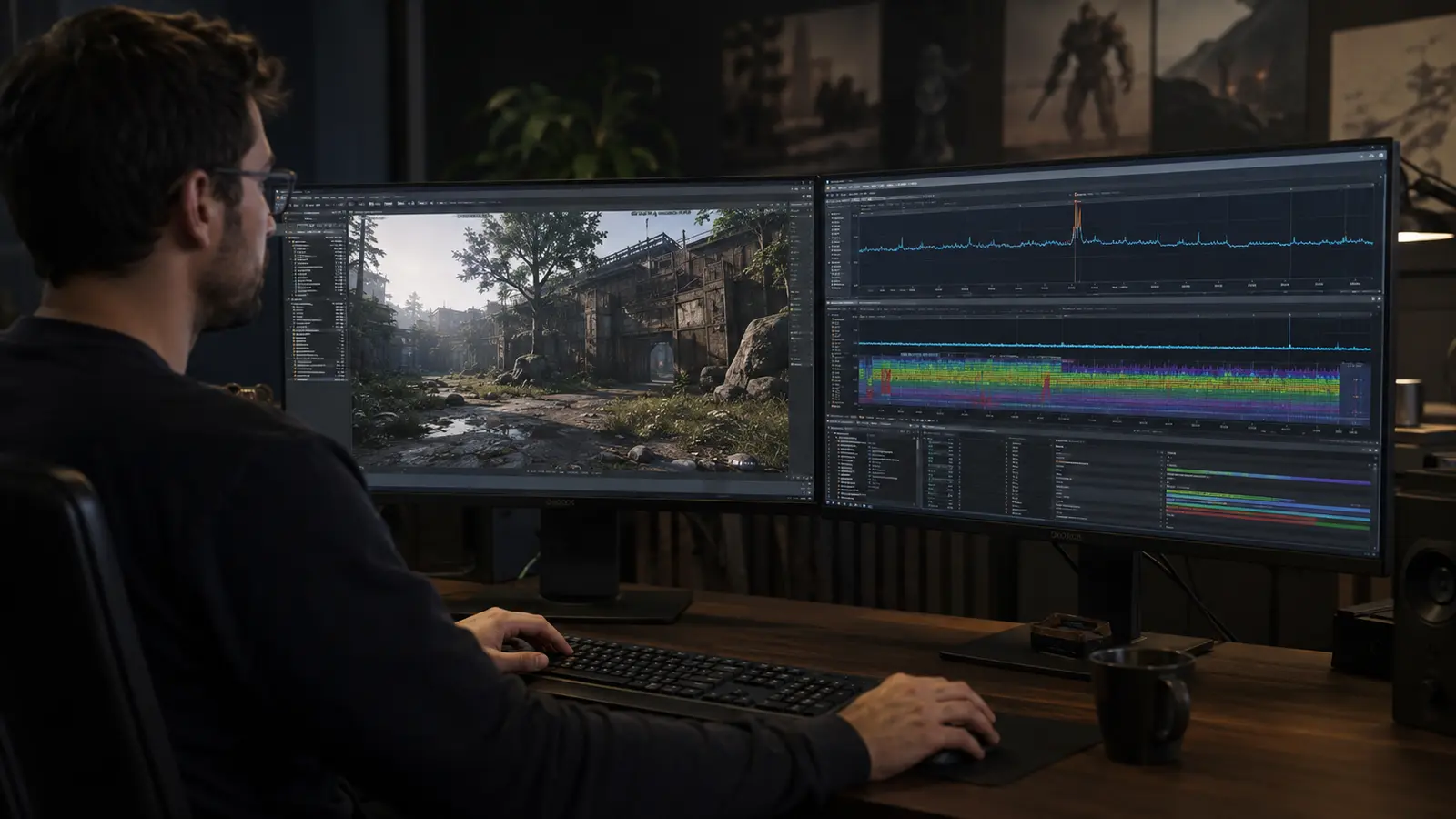
Record frame-time history, GPU utilization and clock, CPU per-core behavior, memory, graphics memory, temperature, and power. If reducing resolution produces a large gain, the GPU was likely limiting. If performance barely changes, the CPU, simulation, storage, or game engine may be the constraint. One CPU core can limit the frame even when total CPU utilization looks modest.
Let shaders compile and the system warm up before comparing settings. Repeat the route several times and note whether the first pass differs. If sharp hitches occur only when new effects or areas appear, use the stutter diagnosis rather than lowering every visual setting.
Thermal throttling can make a good configuration deteriorate over time. If clocks fall after a long session, inspect the cooling path. Performance tuning cannot compensate for a component that cannot sustain its intended power.
Spend The Frame Budget Where It Is Visible
Resolution and heavy ray-traced effects usually pressure the GPU. Shadow quality can affect resolution, distance, filtering, and CPU draw submission. Volumetrics, reflections, global illumination, and ambient occlusion vary widely by engine. Crowds, simulation distance, traffic, and object density may increase CPU work. Texture resolution primarily needs enough graphics memory and storage bandwidth; exceeding VRAM can cause severe stalls rather than a neat gradual loss.
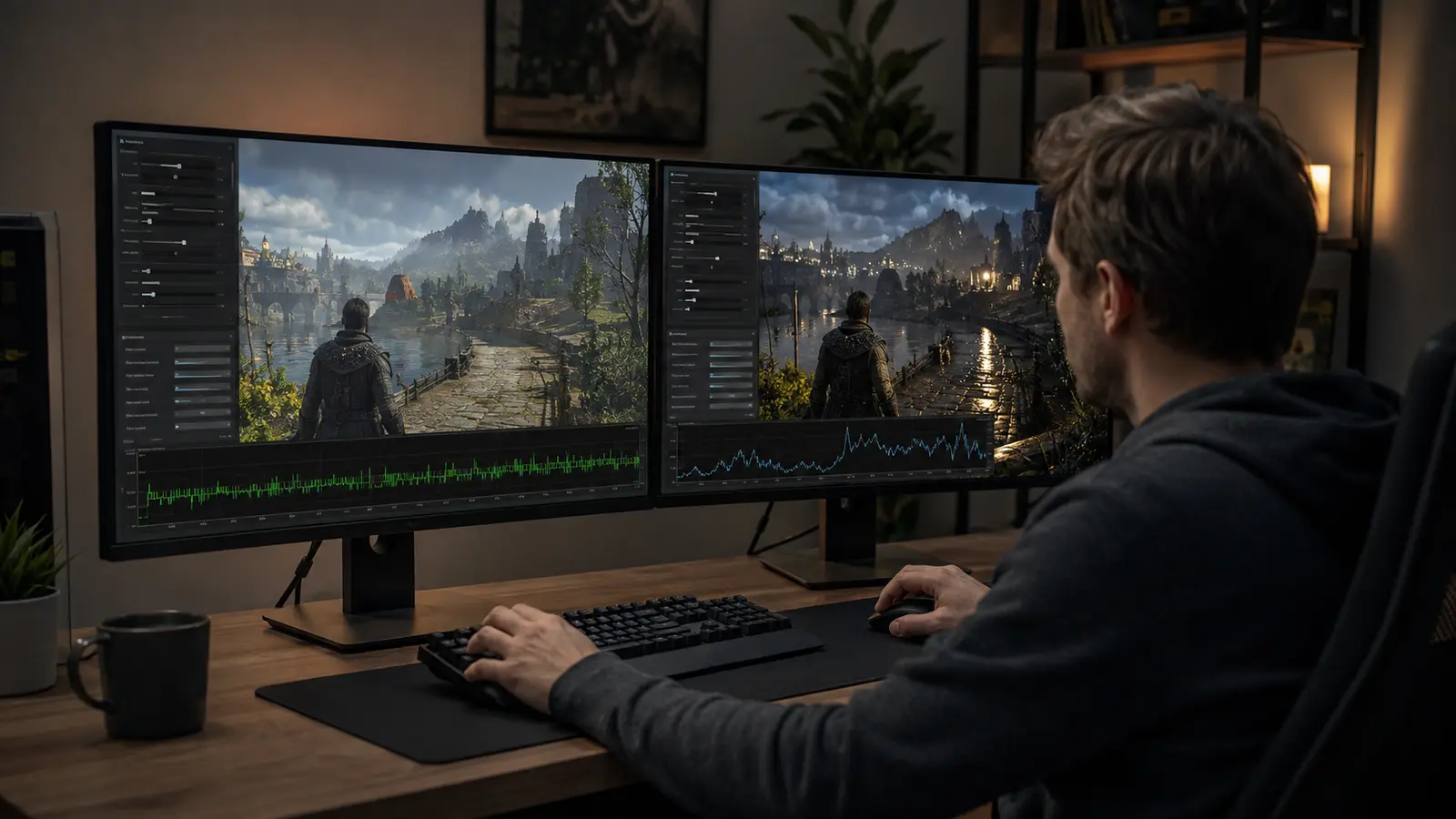
Start with the preset closest to the target, then lower one expensive setting and repeat the route. Compare motion, not only screenshots. A slightly softer shadow may be invisible during play, while unstable reflections or texture shimmer may be distracting. Keep a short record of setting, average frame time, slow percentile, and visual observation.
| Setting family | Common pressure | What to inspect |
|---|---|---|
| Resolution and ray tracing | GPU compute | GPU time and utilization |
| Crowds and simulation | CPU | Per-core time and busy scenes |
| Textures | VRAM and streaming | Allocation, pop-in, traversal hitches |
| Shadows and view distance | CPU and GPU | Large outdoor scenes |
| Post-processing | GPU and image clarity | Motion artifacts and preference |
Use Upscaling And Frame Generation For The Right Problem
Temporal upscalers render a lower internal resolution and reconstruct the output using current and previous frame information. NVIDIA describes DLSS Super Resolution as producing a higher-resolution output from lower-resolution inputs and motion data. AMD FSR and other technologies use different implementations but share the need for good motion vectors and a sensible input resolution.
Choose Quality, Balanced, or Performance by output resolution and what you see in motion. Thin geometry, foliage, particles, text, and disocclusion reveal weaknesses better than a still image. Upscaling helps a GPU limit; it cannot fix a CPU-limited simulation.
Frame generation inserts presented frames between normally rendered frames. It can improve visual fluidity but does not make the game simulation sample input at the generated rate. AMD recommends a healthy base rate for FSR frame generation because artifacts become more visible at low inputs. Pair it with the latency analysis in Why a High Frame Rate Can Still Feel Slow.
Test Traversal, Combat, Menus, And A Long Session
Validate multiple conditions: a demanding scene, fast camera motion, combat, menu transitions, and at least one sustained session. Watch frame-time consistency, temperatures, clocks, memory, and visual artifacts. A configuration that reaches the target in a benchmark but stutters during traversal is unfinished.
Cap slightly below a sustainable level when that produces steadier pacing or keeps variable refresh in its useful range. Avoid stacking several conflicting limiters. If streaming from a remote machine, local graphics settings may not govern the rendered server; follow the cloud-gaming network guide instead.
Save the final settings and note which changes matter most. Driver or game updates can alter shader caches, performance, and defaults, so keep the baseline route for future comparison. The successful tune is not “everything low” or “everything ultra”; it is stable motion with image quality chosen consciously.
Common Graphics-Tuning Questions
Should GPU Usage Always Be 100 Percent?
High GPU use is normal when the GPU sets the frame rate. It is a clue, not a problem, unless temperature, power, noise, or latency misses the goal.
Will Lower Resolution Fix Every Slow Game?
No. It mainly reduces GPU pixel work. CPU, simulation, storage, shader compilation, or network problems may remain.
Is Frame Generation The Same As A Higher Native Frame Rate?
No. It can improve displayed fluidity, but input and simulation responsiveness still depend heavily on the base rendered frame rate and latency path.