Measure What You Keep Active Together
Start with the work, not a round number. Open the projects, browser tabs, communication tools, virtual machines, games, media, and datasets that normally overlap. Let caches warm and perform a demanding operation such as compiling, exporting video, switching a large scene, or running a local model. Record committed memory, active use, swap or page-file activity, and the application’s own memory report.
The operating system intentionally uses spare RAM for file cache and may reclaim it quickly. Therefore “used” memory does not automatically mean pressure, and “free” memory is not the goal. Pressure appears when useful pages are repeatedly evicted, applications compress memory heavily, or storage must serve data that the workload soon requests again.
Measure several sessions, including the worst realistic one, then add headroom for growth and background tasks. A developer who sometimes runs two virtual machines needs a different margin from a writer with the same browser. Capacity advice without concurrency is incomplete.
Recognize When Storage Is Covering A Capacity Shortfall
Virtual memory allows applications to reserve more address space than physical RAM and gives the operating system options under pressure. A page file is not inherently evidence of failure. The harmful pattern is sustained hard faults and storage traffic accompanied by pauses when switching applications or revisiting data.
An SSD makes paging less painful than a hard drive, but it remains much slower and higher latency than RAM. Do not disable the page file as an attempt to force performance; some workloads and crash-dump configurations expect it. Instead, observe whether adding capacity would keep the active working set resident. If storage itself behaves inconsistently, inspect SSD health and thermal evidence before blaming memory alone.
Translate Workloads Into A Capacity Plan
Everyday office and web use can fit comfortably in modest capacity until many browser processes, large documents, and collaboration tools overlap. Games require enough for the title, operating system, launchers, voice chat, and capture tools. Creation workloads scale with timeline resolution, effects, assets, sample libraries, and undo history. Engineering and data work can scale with build parallelism, virtual machines, containers, simulations, and dataset size.
For a measurable plan, note peak committed memory during the heaviest repeatable session. Choose capacity that keeps physical use below the ceiling with a practical buffer rather than buying solely for a hypothetical future. If one application can set a cache or worker limit, configure it intentionally. A build that launches too many parallel jobs may consume every extra gigabyte and remain limited by CPU or storage.
AI workloads require special care. Model weights, runtime buffers, context, and activation memory may reside in system RAM, graphics memory, or both. An integrated GPU typically shares system memory. Understand the allocation path in the CPU, GPU, and NPU workload guide, and use the model or application’s documented requirements.
| Observed condition | Likely interpretation | Response |
|---|---|---|
| High use, no stalls or sustained paging | Cache and applications are fitting | Monitor; no urgent upgrade |
| Stalls with repeated hard faults | Active set exceeds physical RAM | Add capacity or reduce concurrency |
| Application hits its own limit | Configuration or address-space cap | Check software settings and edition |
| Integrated graphics takes a large share | Memory is shared with graphics | Plan system capacity accordingly |
Check Slots, Channels, Firmware, And Compatibility
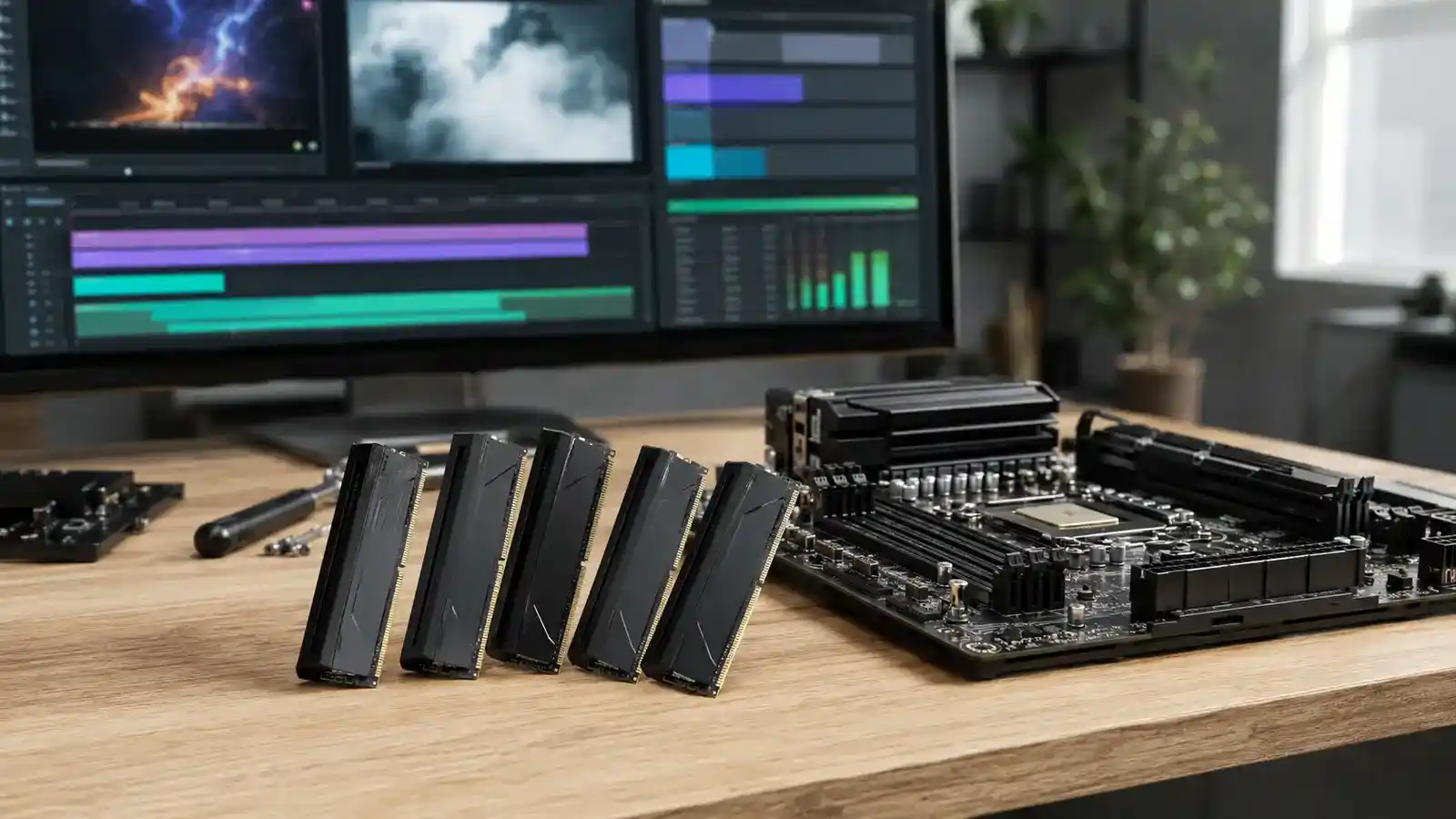
Capacity must fit the platform’s supported total, memory generation, module type, and per-slot limits. Laptop memory may be soldered, partially upgradeable, or unavailable. Desktop boards can reduce supported speed when every slot is populated. Mixing kits can work, but the combined system usually falls back to settings all modules can sustain and is not guaranteed merely because labels match.
Balanced channels improve bandwidth on mainstream platforms. Two suitable modules often provide a better path than one module of the same total capacity, while leaving slots for later expansion can also be valuable. Consult the motherboard or system manual for slot order. Error-correcting memory needs end-to-end platform support; installing an ECC-labeled module does not make an unsupported system correct errors.
Memory profiles are overclocks relative to baseline standards on many systems. Enable them only after the machine is stable at defaults, then test. Higher data rates can increase memory-controller stress and may require a lower setting with dense modules or all slots filled. If errors appear only after the system heats up, use the repeatable thermal diagnostic process before changing several voltages at once.
Validate The Result Under Real Work
After installation, confirm the recognized capacity, channel configuration, and operating speed in firmware and the operating system. Run a dedicated memory test, then repeat the real workload for long enough to expose intermittent errors. Watch for application crashes, corrected hardware errors, or silent file corruption.
If the system fails, return to baseline settings, reseat modules with power disconnected, verify slot order, and test one supported configuration at a time. Do not raise voltages casually. Firmware updates can improve memory compatibility, but follow the vendor’s safe update procedure and preserve settings.
The successful upgrade is not the largest number the board can display. It is a stable configuration that removes measured pressure, preserves bandwidth where needed, and leaves the rest of the system balanced.
Common RAM Questions
Does Empty RAM Mean It Is Wasted?
The operating system can use available RAM for cache. A low free number is not a problem unless pressure causes eviction, paging, or failures.
Should I Fill Every Slot?
Only when the needed capacity and platform guidance justify it. More modules can limit attainable speed and future expansion.
Will More RAM Increase Frame Rate?
It can remove severe stutter when capacity was insufficient. Once the workload fits, CPU, GPU, memory bandwidth, or software behavior usually determines performance.